

Setup Guide
How It Works
Connect in minutes. Plain instructions, no technical background needed.
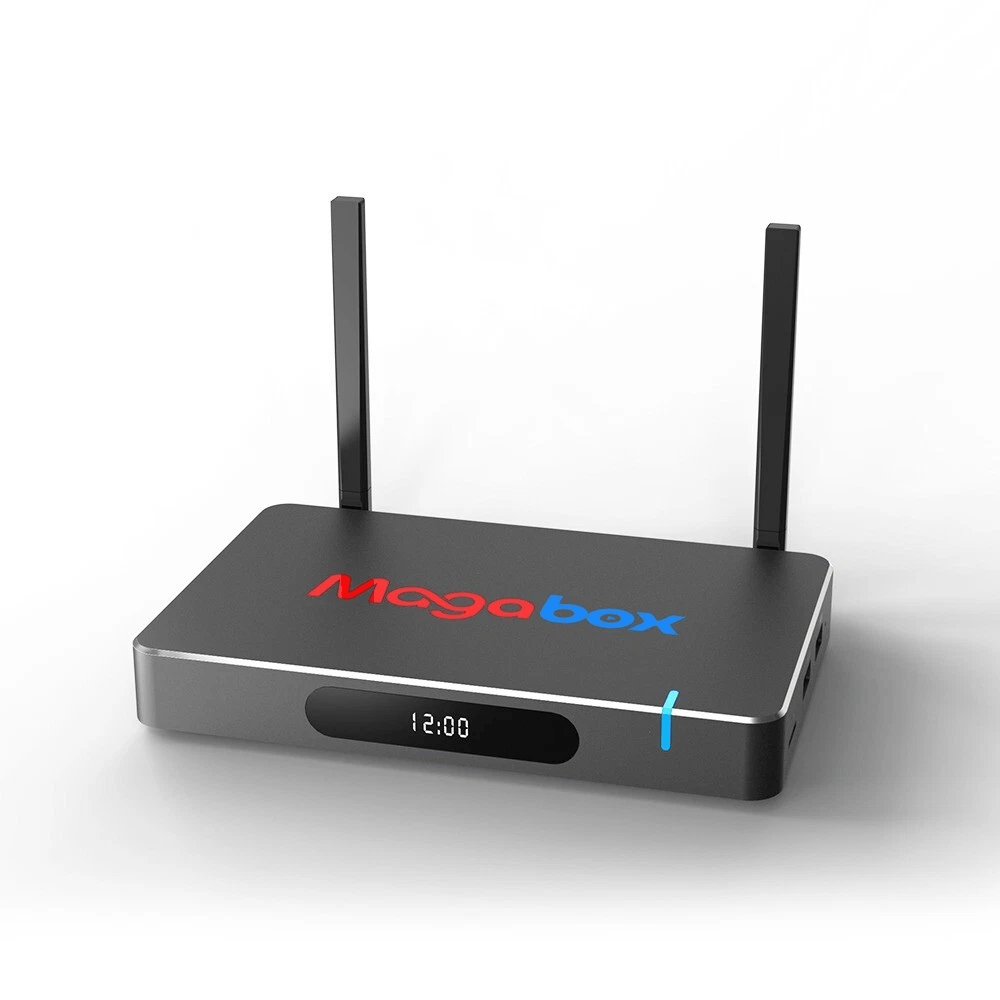
The Box
What MagaBox is.
MagaBox is an Android-powered media box that brings streaming to your TV through one easy device. Connect it, get online, and start. That is the whole idea.
What You Need
Just the essentials.
No extra hardware, no subscriptions to set up first.
- Any TV with an HDMI input. That covers just about every modern television.
- A home internet connection. Wi-Fi or an Ethernet cable, whichever you prefer.
Step One
Connect through HDMI.
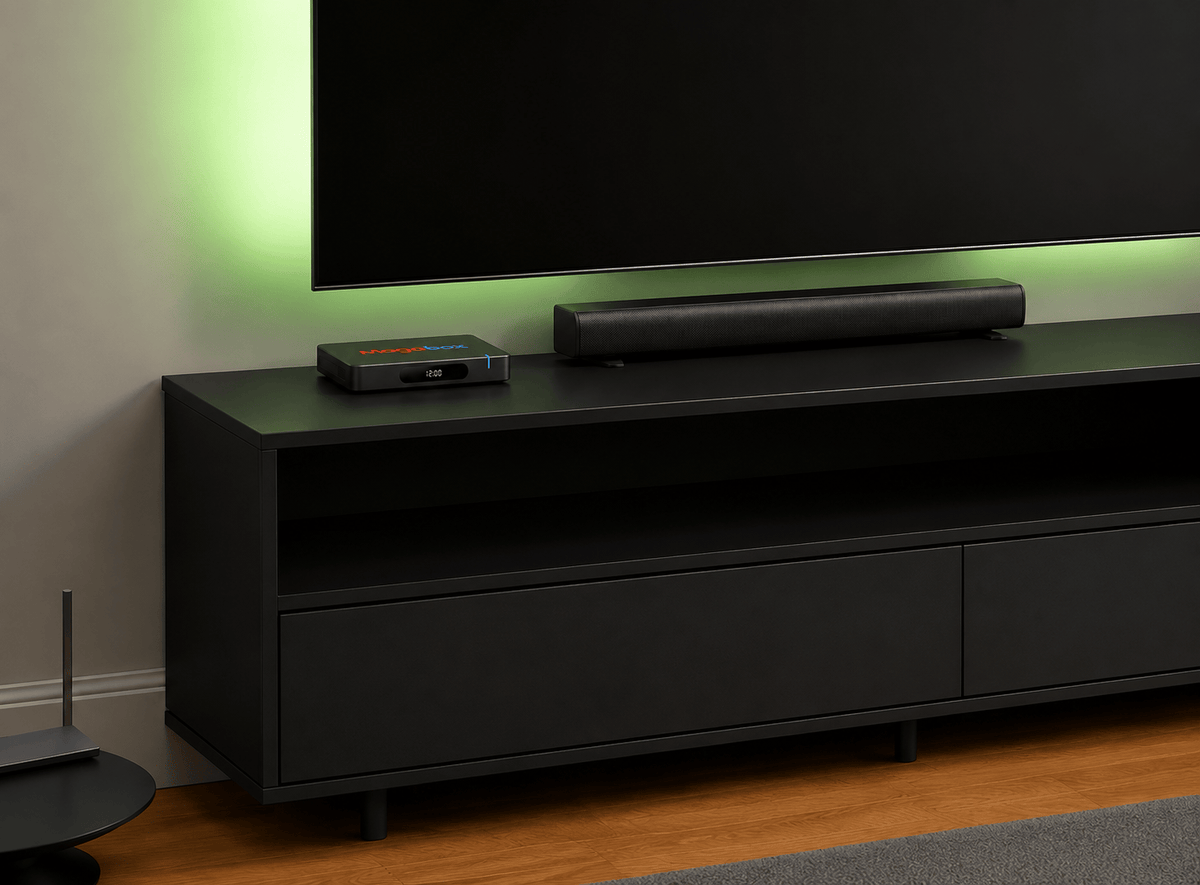
Plug one end of the HDMI cable into the MagaBox and the other into your TV. Then switch your TV to that HDMI input. One cable, box to TV, done.
Step Two
Wi-Fi or Ethernet.
Wireless: pick your home network and enter the password once.
Plug in: connect an Ethernet cable for a wired connection. Either way, you are online in a minute.

Step Three
Set up your remote.
Point it at the box, follow the on-screen prompt, and it pairs in seconds. Now you can navigate the menus and, on compatible setups, use your voice.
First Power-On
The first screen.
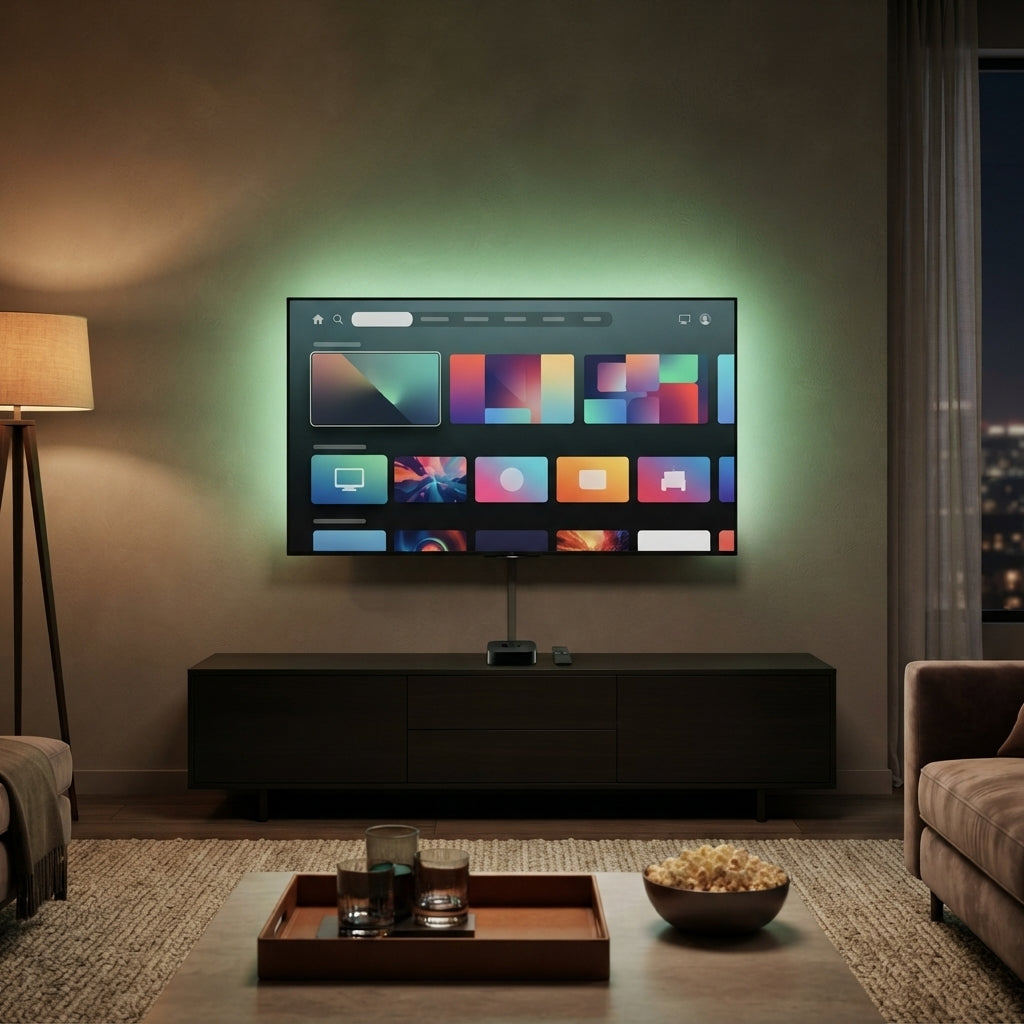
Here is what to expect the first time you switch it on.
-
1
Turn it on
Power up the box and your TV.
-
2
Reach the home screen
Wait a moment for the menus to load.
-
3
Look around
Move through the menus with your remote.
Troubleshooting
First-day snags, sorted.
The five that come up most, each with a calm fix.
Nothing shows on my TV.
Check that your TV is set to the same HDMI input the MagaBox is plugged into. Most remotes have an Input or Source button.
It will not connect to Wi-Fi.
Double-check the network name and password. If it still will not connect, move the box closer to the router or use an Ethernet cable.
The remote is not responding.
Re-pair it from the on-screen prompt, and check the batteries. Point it at the box while pairing.
The picture looks off.
Try a different HDMI port on your TV, and make sure the cable is seated firmly at both ends.
It feels slow.
A wired Ethernet connection is steadier than Wi-Fi. Restarting the box clears up most first-day hiccups.